Sketching
Our interactive, constraint-based sketcher allows you to create 2D geometry using lines, arcs, and circles. We aim for intuitive usability and will focus this document on features that are unique to our system or that differ from other sketching tools.
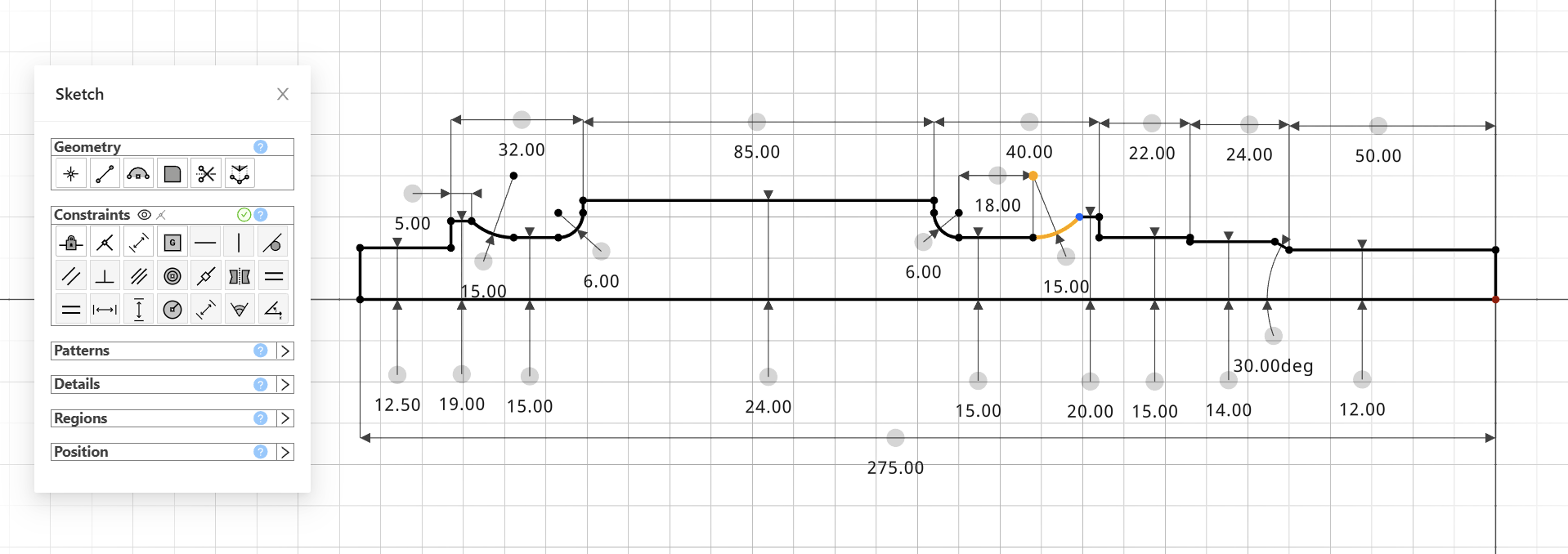
Getting Started
To begin sketching, you must first select one of the main workplanes. In later modeling stages, you can also select the face of a BREP (Boundary Representation) or use custom workplanes you've defined. When sketching on a face, the system automatically creates and assigns a workplane beforehand—this separates workplane referencing from sketching.
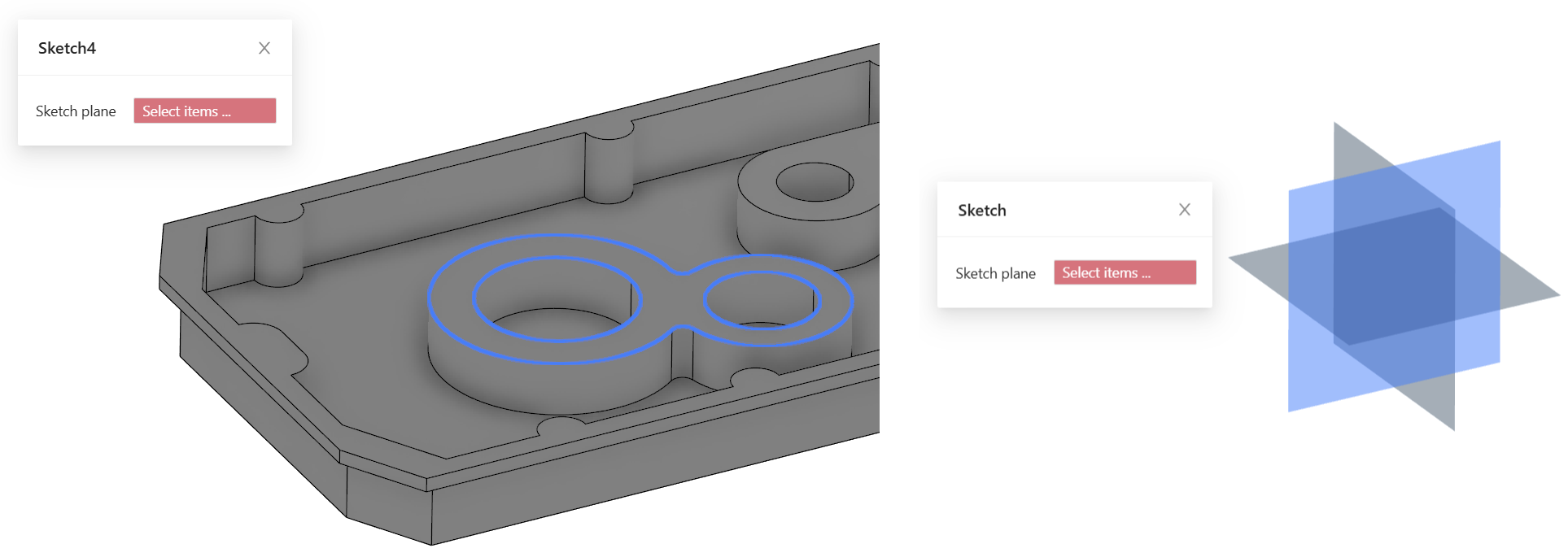
You can change the sketch’s associated workplane later in the Position tab of the Sketcher plugin. This tab allows you to modify the workplane direction, override the default origin, and adjust the orientation.
A context menu is available on each element to assist with selecting overlapping or hidden geometry. It uses ray tracing to find all geometry at a specific point and generates a selection list. A context menu on the canvas also allows you to zoom or reorient the sketch plane to a normal view.
Geometry
You can create lines and polylines by selecting the line icon and clicking in the canvas. Pressing ESC is important to exit any active editing mode. The currently active mode is indicated by a highlighted icon.
Constraints
We support both geometric and dimensional constraints.
Use the eye icon in the Constraints tab to toggle constraint visibility. When enabled, constraints are always shown on the canvas. When disabled, they appear dynamically as needed.
To use incidence constraints (e.g., point-on-line), you must enable them using the incident icon next to the eye icon.
Available constraint types depend on your current selection, allowing only valid combinations for application.
Fillets
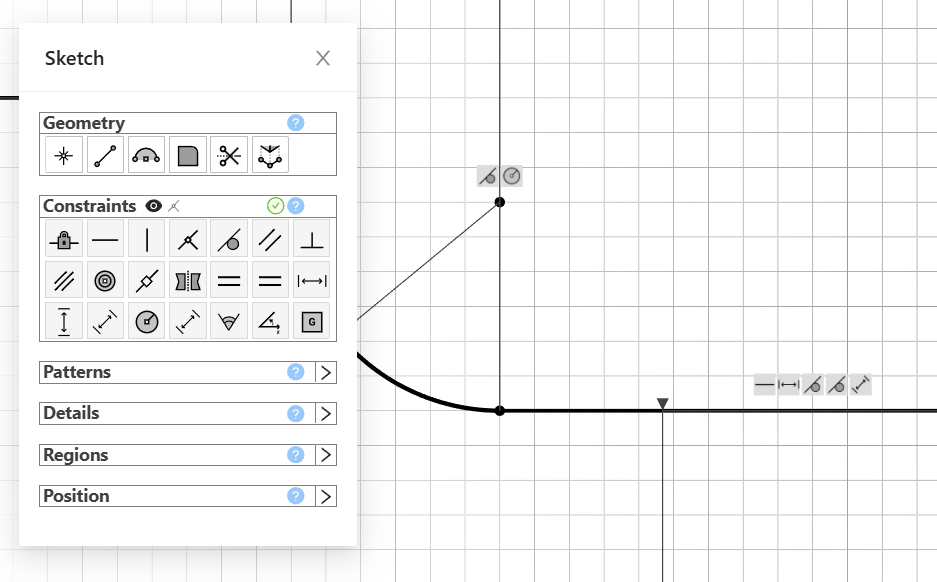
To create a fillet between two lines, enter fillet mode, hover over their intersection point, and click it. You can undo the fillet by clicking on the newly created point (which lies on both lines).
Exit fillet mode using ESC. Dimensional constraints on the original lines will reference this new point to preserve original distances after filleting.
Split / Trim
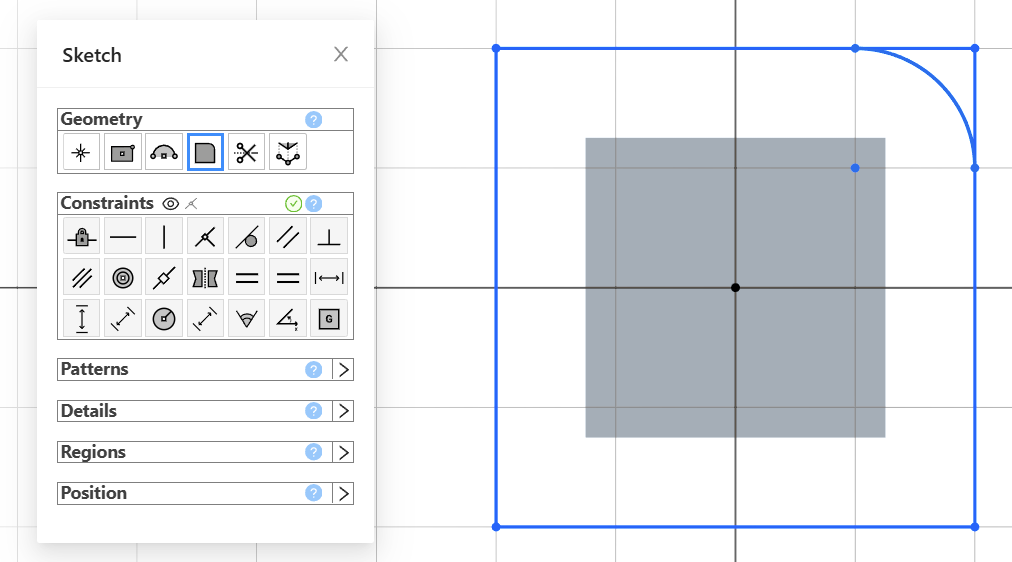
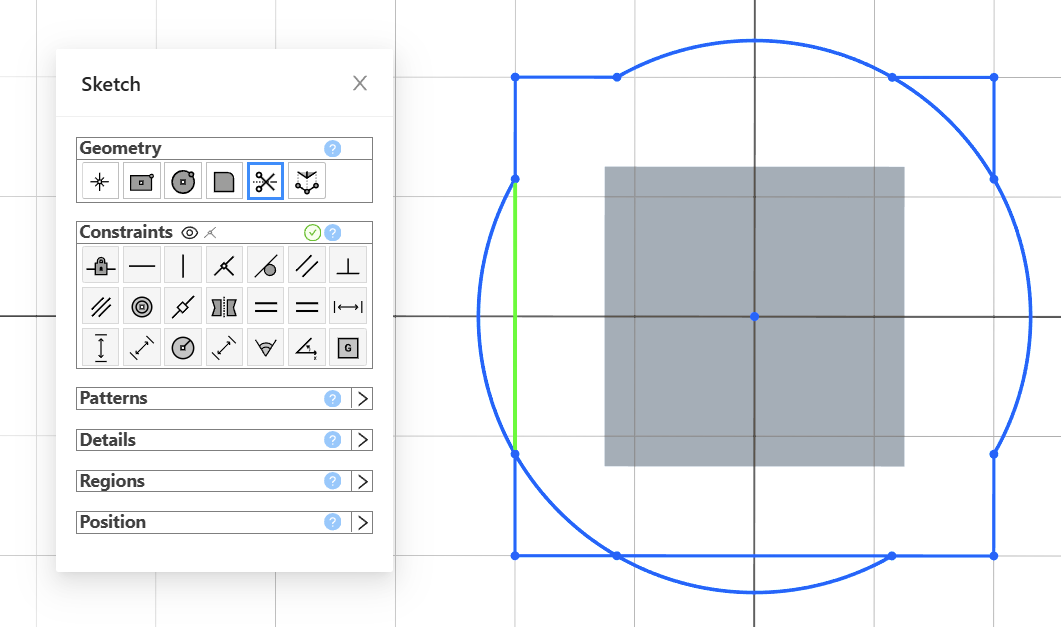
This mode allows you to split sketch geometry, which is particularly useful before creating regions for operations like extrusion.
In Trim mode, all potential trimming curves are highlighted. You can then select the segments you wish to remove.
Use Geometry / Reference Geometry
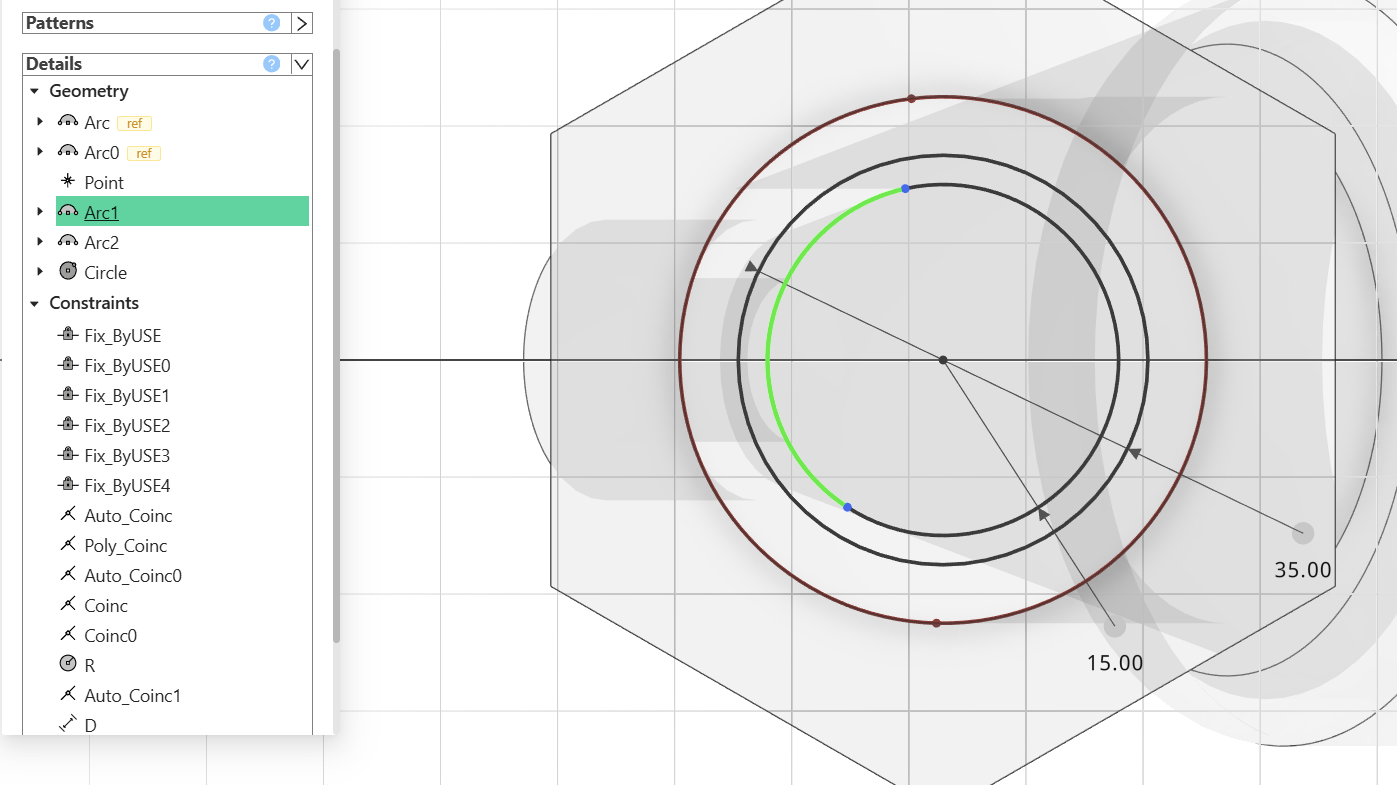
This mode allows you to project existing BREP geometry onto the sketch plane, with or without reference. Referenced geometry will be parametrically updated if earlier changes in the part’s history affect the geometry. Referenced elements are automatically fixed in the sketch and cannot be moved.
Use this feature to easily project geometry—especially useful when remodeling imported STEP files parametrically.
Details Pane
The Details pane shows all constraints and geometry in the current sketch. You can rename objects and inspect the sketch structure easily from here.
Regions
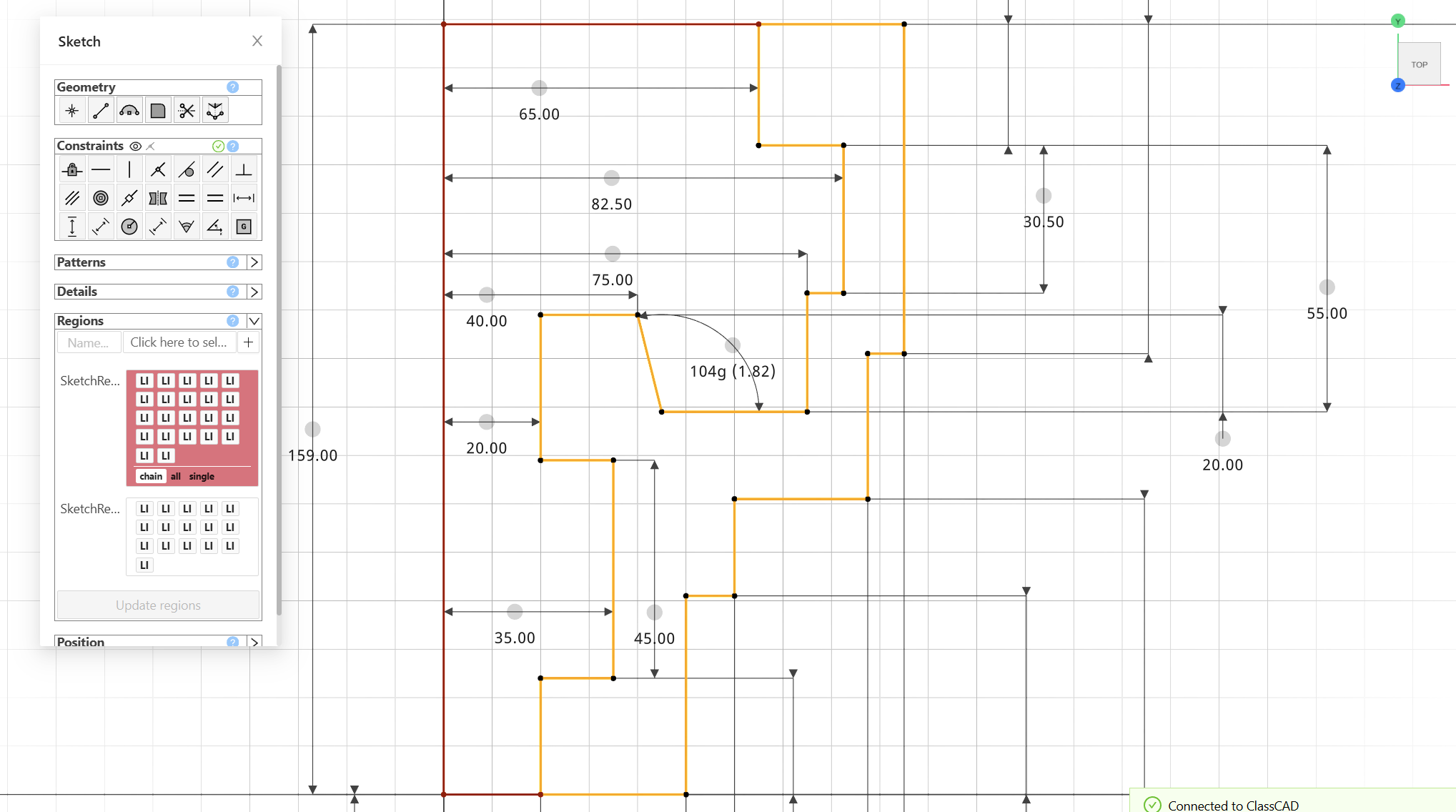
We support named regions, which are containers for geometry that can be used in operations like extrude or revolve. You can create regions in advance using the Region tab, where you assign a name, or directly when creating an extrusion.
Once created, regions can be accessed using the "R" icon on the canvas. Named regions are especially useful in combination with Buerli programming.
Pattern
We support linear and circular patterns, which automatically create corresponding constraints in the sketch. You can also mirror sketch geometry.
Use sketch patterns carefully—it's often more efficient to apply patterns at the solid modeling stage rather than in the sketch.